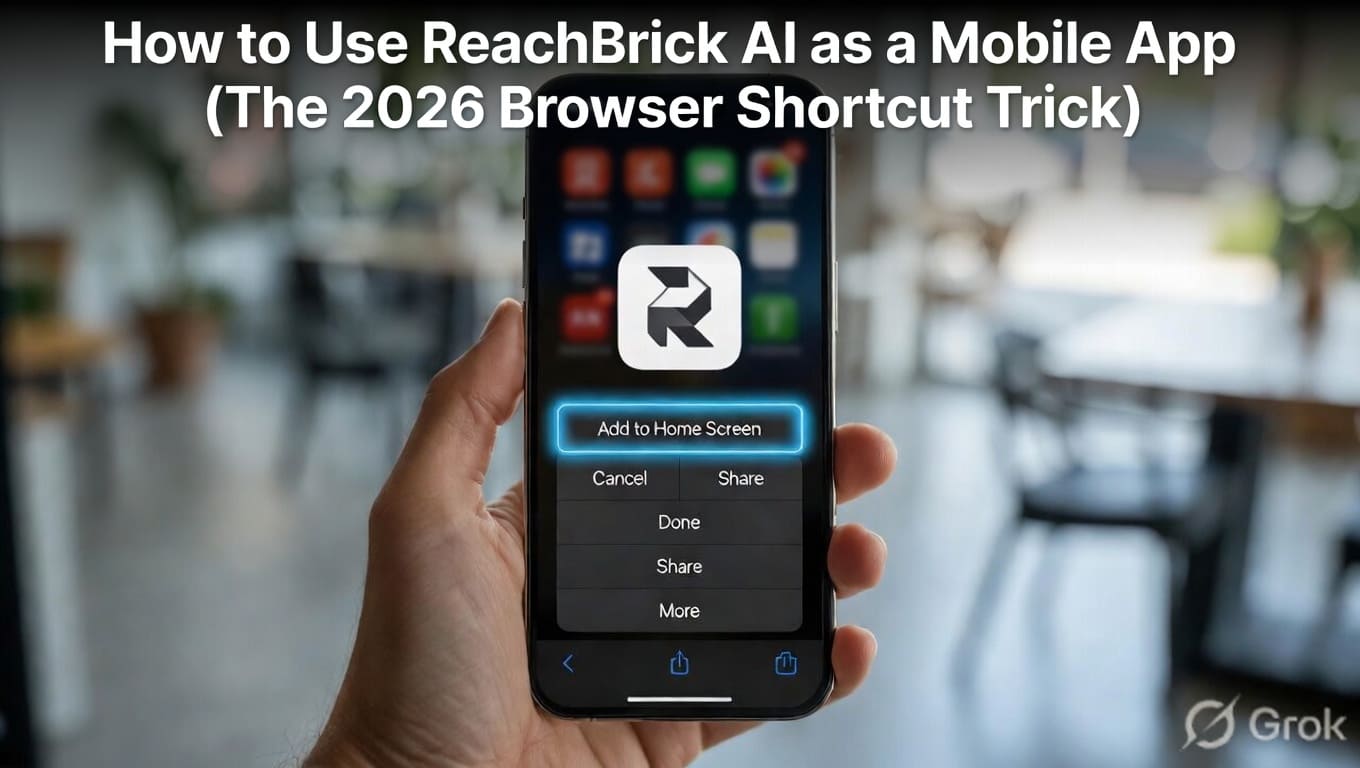
Introduction: Why You Don’t Need an App Store
In 2026, the trend is moving away from “Heavy Apps” that eat up your phone’s storage. Why download a 100MB app from the Play Store or App Store just to remove a watermark? Most professional creators now prefer Progressive Web Shortcuts.
ReachBrick AI is optimized to run directly in your mobile browser (Chrome or Safari) using your phone’s GPU. But let’s be honest—opening a browser and typing the URL every time is annoying.
What if you could have a ReachBrick Icon right on your home screen, next to Instagram and WhatsApp, that opens instantly? Here is the secret “Shortcut Trick” to turn ReachBrick into a high-performance mobile app in under 30 seconds.
1. The Android “Chrome” Trick
If you are using an Android device (Samsung, Pixel, OnePlus, etc.), this is the fastest way to get ReachBrick on your home screen.
- Open Chrome: Go to
https://reachbrick.com. - Tap the Three Dots: In the top-right corner, click the three vertical dots (Menu).
- Add to Home Screen: Look for the option “Add to Home Screen” or “Install App.”
- Rename & Confirm: A pop-up will appear. Name it “ReachBrick AI” and tap Add.
- Placement: Chrome will now place a beautiful Red “R” icon on your home screen.
[Image showing a screenshot of the “Add to Home Screen” option in the Android Chrome menu]
2. The iPhone “Safari” Shortcut (iOS 19+)
Apple is very strict about apps, but they love “Web Clips.” On your iPhone, you must use Safari for this trick to work.
- Open Safari: Navigate to
https://reachbrick.com. - The Share Icon: Tap the Share button (the square with an arrow pointing up) at the bottom center of the screen.
- Scroll Down: Scroll through the list of options until you see “Add to Home Screen.”
- Confirm: Tap Add in the top-right corner.
- Experience: Now, just tap the icon on your iPhone. It will open in “Standalone Mode,” meaning the browser address bar disappears, giving you a full-screen app experience.
3. Why the “Shortcut” is Better Than a Native App
- Zero Storage: Since it runs on the web, it uses 0MB of your phone’s internal storage.
- Instant Updates: You never have to “Update” the app. Every time we add a new tool (like the Sora Video Remover), it appears automatically in your shortcut.
- Privacy First: Web apps run in a “Sandbox.” They can’t access your private contacts or messages, unlike some shady apps on the App Store.
- GPU Power: ReachBrick uses WebAssembly (WASM), which means it uses your phone’s hardware directly through the browser for lightning-fast watermark removal.
4. Pro-Tip: Organize Your “AI Suite”
Most professional creators in 2026 create a Folder on their home screen called “AI Tools.” Inside this folder, they keep:
- ChatGPT (Generation)
- Gemini (Research)
- ReachBrick AI (Cleaning & Restoration)
- Upscale.media (Enhancement)
This setup makes your mobile workflow 5x faster than a desktop user.
5. Troubleshooting: Icon Not Appearing?
If you don’t see the icon:
- Android: Ensure you haven’t “Locked” your home screen layout in settings.
- iOS: Make sure you are using Safari, not Chrome or Firefox, as Apple only allows Safari to create Home Screen shortcuts.
Conclusion: ReachBrick at Your Fingertips
The “Brick” of your creative foundation is now just one tap away. By using the Browser Shortcut Trick, you turn ReachBrick AI from a website into a permanent part of your mobile creative studio. Whether you are at a cafe or traveling, professional watermark removal is now as easy as opening your camera.